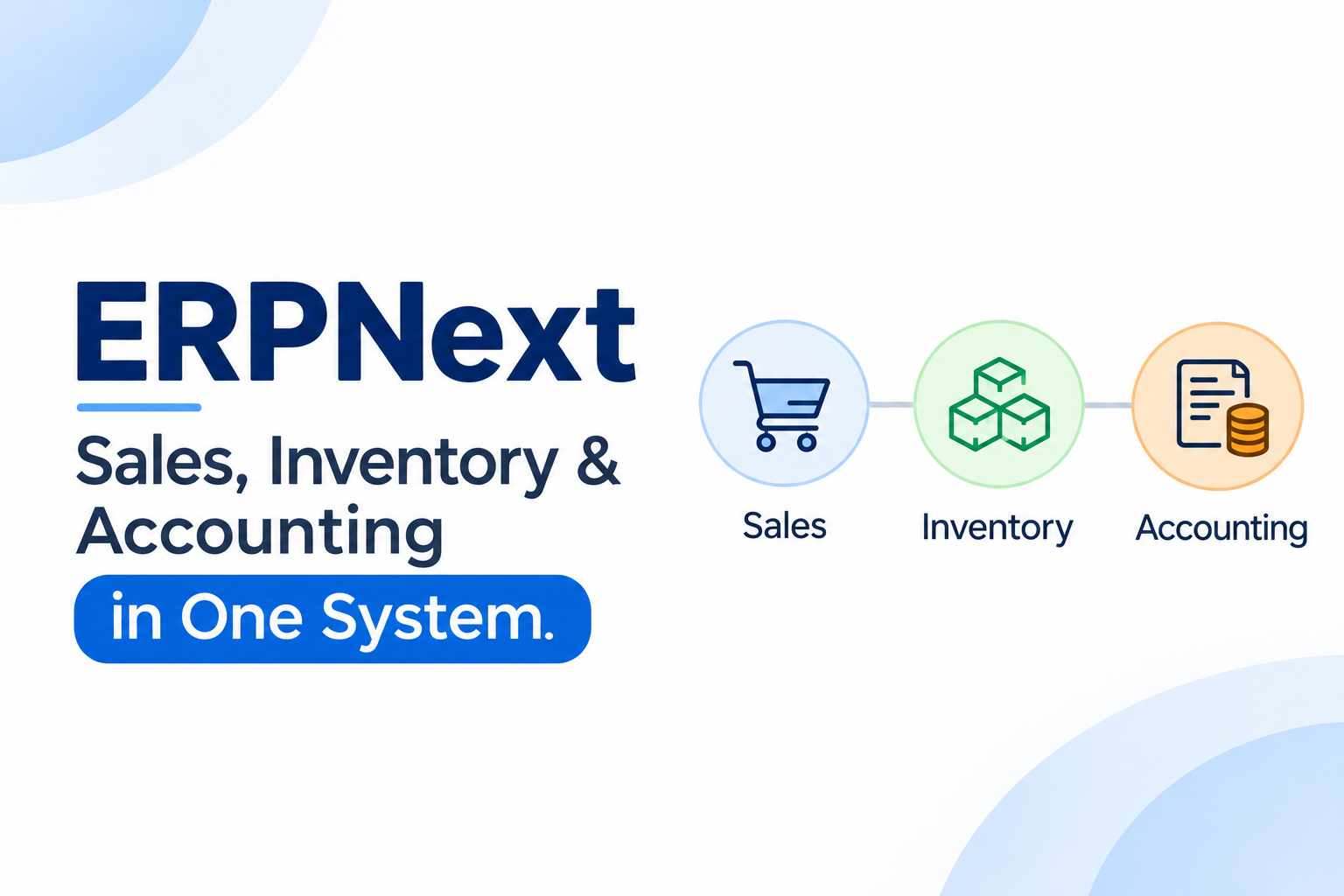
In a fragmented business environment, data silos between the sales team, the warehouse, and the finance department often lead to reconciliation nightmares and inaccurate financial reporting. Achieving a seamless ERPNext integrated workflow is the primary goal for organizations looking to eliminate manual data entry and ensure that every physical stock movement is reflected instantaneously in the books of accounts. When implemented correctly, ERPNext functions as a single source of truth where a sales transaction automatically updates inventory levels and generates the corresponding accounting ledgers without human intervention.
For implementation consultants and finance managers, understanding how these three modules—Sales, Stock, and Accounting interact is critical. It is not merely about creating documents; it is about configuring the system so that the “Stock Ledger General Ledger sync” remains flawless. This integration ensures that the value of inventory on the balance sheet always matches the physical valuation in the warehouse. In this guide, we will explore the technical configurations, document lifecycles, and validation steps required to master the integrated nature of ERPNext.
The Foundation: Setting Up Integrated Accounts
Before any transaction can be processed, the foundation of the ERPNext integrated workflow must be established in the Chart of Accounts and Company settings. ERPNext uses a template approach to accounting, but the real power lies in how these accounts are mapped to specific stock and sales activities. To start, you must ensure that your Company record has the correct default accounts defined. These include the Default Inventory Account, Stock Received But Not Billed, and the Cost of Goods Sold (COGS) account.
The ERPNext module integration begins with the decision between Perpetual and Periodic inventory. Most modern businesses opt for ERPNext Perpetual Inventory because it automates the accounting entries for every stock transaction. In a perpetual system, every time stock is received or delivered, the system creates a “Journal Entry” (behind the scenes) that updates the Inventory account on the Balance Sheet. If this is disabled, you are left with periodic accounting, which requires manual month-end adjustments and loses the real-time visibility that makes ERPNext powerful.
Mapping Chart of Accounts for Sales and Stock
A common hurdle during implementation is mapping chart of accounts for sales and stock to ensure that revenue and expenses are tracked against the right departments or product lines. In ERPNext, you can define accounts at multiple levels: the Company level, the Item Group level, the Warehouse level, or even at the individual Item level. The system follows a hierarchy: it first looks for an account on the Item record; if blank, it checks the Item Group; if still blank, it falls back to the Warehouse defaults, and finally to the Company defaults.
When configuring these accounts, consider the following mappings:
- Income Account: Usually a Sales account under the Revenue head. This is triggered when a Sales Invoice is submitted.
- Expense Account (COGS): This is where the valuation of the item is moved when it is sold. It represents the “Cost of Goods Sold.”
- Inventory Account: An Asset account that represents the value of stock currently held in your warehouses.
- Stock Adjustment Account: Used for stock reconciliations or write-offs.
The Sales-Stock-Accounts Document Lifecycle
The integration is best observed through the document lifecycle. Each step in the sales process has a specific impact on either the stock ledger, the general ledger, or both. Understanding this flow is essential for anyone wondering how to link sales order to delivery note in erpnext and subsequently to the invoice.
1. Sales Order (SO)
The Sales Order is a commitment to the customer. At this stage, there are no accounting entries and no physical stock movement. However, ERPNext updates the “Reserved Quantity” in the stock module. This prevents other sales orders from “stealing” the stock intended for this customer, even though the items are still physically in the warehouse.
2. Delivery Note (DN)
When you are ready to ship, you create a Delivery Note. This is where the ERPNext Perpetual Inventory system kicks into gear. To maintain the link, you should always create the DN from the SO using the “Create” button. This answers the common user query of how to link sales order to delivery note in erpnext: by pulling the data forward, the system maintains a “References” table that tracks exactly how many items from the SO have been shipped.
Upon submission of the Delivery Note:
- Stock Ledger: Decreases the “Actual Quantity” in the specified Warehouse.
- General Ledger: Debits the COGS account and credits the Inventory account based on the item’s valuation rate.
3. Sales Invoice (SINV)
The Sales Invoice is the financial demand for payment. If you have already created a Delivery Note, the Invoice will not impact stock (unless the “Update Stock” checkbox is manually checked, which is generally discouraged if a DN already exists). The Sales Invoice focuses on the automated accounting entries for sales in erpnext.
Upon submission of the Sales Invoice:
- General Ledger: Debits the Customer (Receivable) account and credits the Income account. It also handles tax entries by crediting various Tax accounts.
Understanding Perpetual Inventory Postings
The core of the Stock Ledger General Ledger sync is the automated posting of valuation. In ERPNext, stock is not just a number of items; it is a monetary value. When you buy an item for $10 and sell it, the system must move exactly $10 from your Assets to your Expenses. This is the “Perpetual Inventory” method.
The inventory valuation impact on accounting erpnext is determined by the valuation method selected (FIFO or Moving Average). Under FIFO (First-In-First-Out), ERPNext tracks the specific cost of each batch received. When you ship an item via a Delivery Note, the system looks at the oldest available batch and uses its rate for the accounting entry. If your purchase prices fluctuate, your COGS will vary even if the sales price remains constant. This level of detail is what allows for accurate gross profit reporting at the item or transaction level.
Automated Accounting Entries for Sales in ERPNext
Automation reduces the risk of human error. When a Sales Invoice is submitted, the system automatically identifies the correct Ledger entries. If you are using automated accounting entries for sales in erpnext, you can also set up Deferred Revenue. If a customer pays for a 12-month subscription, ERPNext can automatically spread the income over the 12 months rather than booking it all in the first month. This is done by mapping the Income Account to a Deferred Revenue account in the Item master.
Linking Taxes and Charges to the Chart of Accounts
An integrated system must handle more than just the item price. Shipping fees, VAT, GST, or luxury taxes must all land in the correct accounts. In ERPNext, this is managed through the Sales Taxes and Charges Template.
Each row in the tax template is linked to an account in the Chart of Accounts. For example:
| Type | Account Head | Description | Impact |
|---|---|---|---|
| On Net Total | VAT 15% – [Company] | Value Added Tax | Credits Tax Liability Account |
| Actual | Shipping Charges – [Company] | Delivery Fee | Credits Income/Shipping Account |
| On Previous Row Amount | Surcharge – [Company] | Additional Tax | Credits Tax Liability Account |
By pre-configuring these templates, the sales team doesn’t need to know which ledger to use; they simply select the “Standard Tax” template, and the ERPNext integrated workflow handles the rest during document submission.
Inventory Valuation Impact on Accounting ERPNext
The inventory valuation impact on accounting erpnext is most visible during “Stock Recalculation.” If a back-dated entry is made (e.g., entering a Purchase Receipt for last week today), ERPNext automatically recalculates all subsequent stock and accounting entries to ensure the valuation remains accurate. This is a powerful feature that maintains the integrity of the Stock Ledger General Ledger sync.
However, users must be cautious. Back-dated entries can change the financial figures of a previous (and perhaps closed) month. To prevent this, consultants often recommend using the “Global Defaults” to set a Role Allowed to Edit Back-dated Entries or setting a Frozen Accounts date to lock previous periods.
Validating Integration: Stock Balance vs Stock Ledger vs GL
A critical step for any Business Process Owner is validating that the integration is working as expected. If the ERPNext integrated workflow is configured correctly, the following three reports should always reconcile:
- Stock Ledger: Shows the movement of items and the “Balance Value” of stock.
- Stock Balance: Provides a snapshot of stock value at a specific point in time.
- General Ledger (for the Inventory Account): Shows the monetary value of stock from an accounting perspective.
To validate, run the Stock and Account Value Comparison report. This report is specifically designed to highlight discrepancies between the Stock Ledger and the General Ledger. Common reasons for discrepancies include manual Journal Entries made directly to the Inventory account (which should be avoided) or disabling Perpetual Inventory midway through a fiscal year.
Common Mistakes and How to Avoid Them
Even with a robust system like ERPNext, configuration errors can lead to data inconsistency. Here are the most common mistakes found during ERPNext module integration audits:
1. Not Linking Documents: Users often create a Sales Invoice manually without linking it to the Sales Order or Delivery Note. This breaks the ERPNext integrated workflow, leaving Sales Orders in an “Open” status indefinitely and failing to update the “Billed Amount” in the stock module.
2. Inconsistent Account Mapping: Mapping a Stock Item to a non-stock account (or vice versa) will cause the Stock Ledger General Ledger sync to fail. Always ensure that “Is Stock Item” is checked for items that should impact the inventory account.
3. Circular Mappings: Setting the “Expense Account” of an item to the same account as the “Inventory Account” will result in a net-zero transaction in the ledger, effectively hiding your COGS and inflating your asset value.
4. Ignoring the Update Stock Checkbox: In a Sales Invoice, the “Update Stock” checkbox should only be used if there is no separate Delivery Note. If both are used for the same transaction, stock will be deducted twice, and the accounting entries will be duplicated.
Practical Scenario: A Standard Integrated Transaction
Let’s look at a concrete example of the ERPNext integrated workflow in action for a company selling a laptop.
Step 1: Sales Order. A customer orders 5 laptops at $1,000 each. The system reserves 5 units. No accounting entry. Status: To Deliver and Bill.
Step 2: Delivery Note. The warehouse ships 5 units. The system checks the valuation (let’s say $700 each).
GL Entry: Debit COGS $3,500 | Credit Stock Assets $3,500.
Status: Delivered and To Bill.
Step 3: Sales Invoice. The finance team generates the invoice from the Delivery Note.
GL Entry: Debit Customer $5,000 | Credit Sales Income $5,000.
Status: Paid (once Payment Entry is made).
This flow ensures that at the end of the day, the Income Statement correctly shows $5,000 Revenue and $3,500 Expense, yielding a $1,500 Gross Profit, while the Balance Sheet correctly reflects the reduction of $3,500 in assets.
Operational and Business Value
The value of a fully ERPNext integrated workflow extends beyond simple record-keeping. It provides real-time financial visibility. Management can view a Profit and Loss statement at any moment and trust that it includes the most recent sales and the most accurate cost of goods sold. Furthermore, it streamlines the audit process. Because every ledger entry is linked back to a source document (like a Delivery Note or Sales Invoice), auditors can easily trace the “paper trail” within the system.
For the warehouse, it ensures that stock levels are never a surprise. Because the stock ledger is updated the moment a Delivery Note is submitted, the Available Quantity is always accurate, reducing the risk of overselling or stockouts. This ERPNext module integration is what allows businesses to scale without exponentially increasing their administrative overhead.
Frequently Asked Questions
Can I link a single Sales Order to multiple Delivery Notes?
Yes. ERPNext supports partial deliveries. You can create multiple Delivery Notes from a single Sales Order. The system will track the “Delivered Quantity” against the “Total Quantity” in the Sales Order until it is fully fulfilled. This is a core part of how to link sales order to delivery note in erpnext for complex logistics.
What happens if I return an item?
For returns, you use the Sales Return feature and a Credit Note. This reverses the automated accounting entries for sales in erpnext, putting the item back into stock and debiting the income account/crediting the customer.
How does ERPNext handle shipping costs in the integration?
Shipping costs are added in the Taxes and Charges table of the Sales Order or Invoice. If you want these costs to be treated as income, map them to an Income account. If you want them to offset a shipping expense account, map them accordingly in the tax template.
Why does my Stock Balance not match my General Ledger?
This usually happens due to manual Journal Entries made to the stock account, or because some stock transactions were made before the “Perpetual Inventory” setting was enabled. Use the “Stock and Account Value Comparison” report to identify the specific transactions causing the mismatch.
Conclusion
Mastering the ERPNext integrated workflow is the hallmark of a successful implementation. By tightly linking Sales, Stock, and Accounting, businesses can achieve a level of operational efficiency that manual systems or disconnected software cannot provide. From the initial mapping chart of accounts for sales and stock to the daily Stock Ledger General Ledger sync, every configuration choice matters. When these modules work in harmony, the system doesn’t just record what happened—it provides the insights needed to decide what should happen next.
If you are struggling with reconciling your stock and accounts, or if you need assistance configuring a complex ERPNext integrated workflow for your organization, GoERPNext is here to help. Our community and experts specialize in restructuring ERPNext implementations to ensure they meet the highest standards of financial accuracy and operational efficiency. Visit our discussion forum to share your challenges, or explore our documentation for more deep dives into ERPNext module integration. Let’s build a system that works for you, not the other way around.