
How to Encash Unused Leaves in Frappe HR
Frappe HR allows organizations to convert an employee’s unused leave balance into a monetary benefit through Leave Encashment. Once configured, the encashed leave amount is automatically added to the employee’s Salary Slip and paid along with regular earnings.
This feature is useful for organizations that allow employees to receive compensation for unused leave balances at the end of a leave period or according to company policy.
1. Enable Leave Encashment for a Leave Type
Begin by creating or editing the Leave Type that will support leave encashment.
- Open the required Leave Type.
- Enable the Allow Encashment option.
- Save the Leave Type.
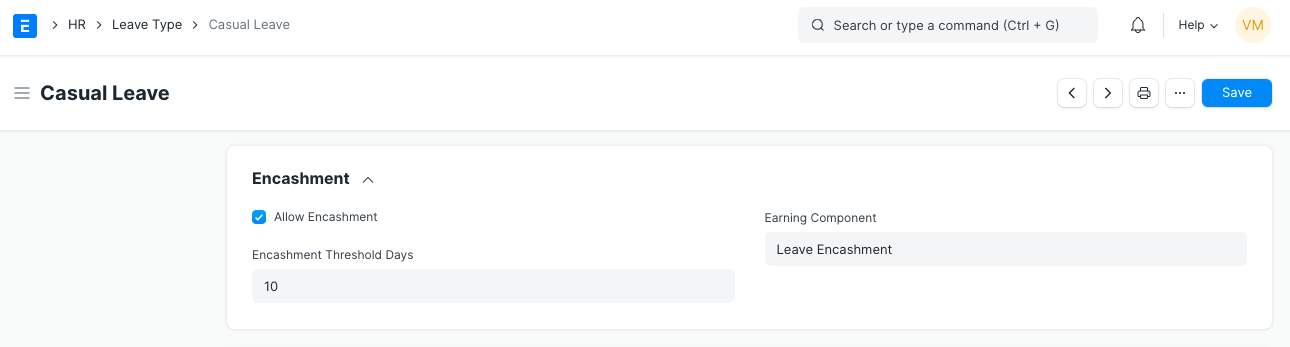
Only Leave Types with the “Allow Encashment” option enabled can be used for Leave Encashment.
2. Add the Leave Type to a Leave Policy
After enabling leave encashment:
- Add the Leave Type to a Leave Policy.
- Create a Leave Policy Assignment for the employee.
- Submit the Leave Policy Assignment.
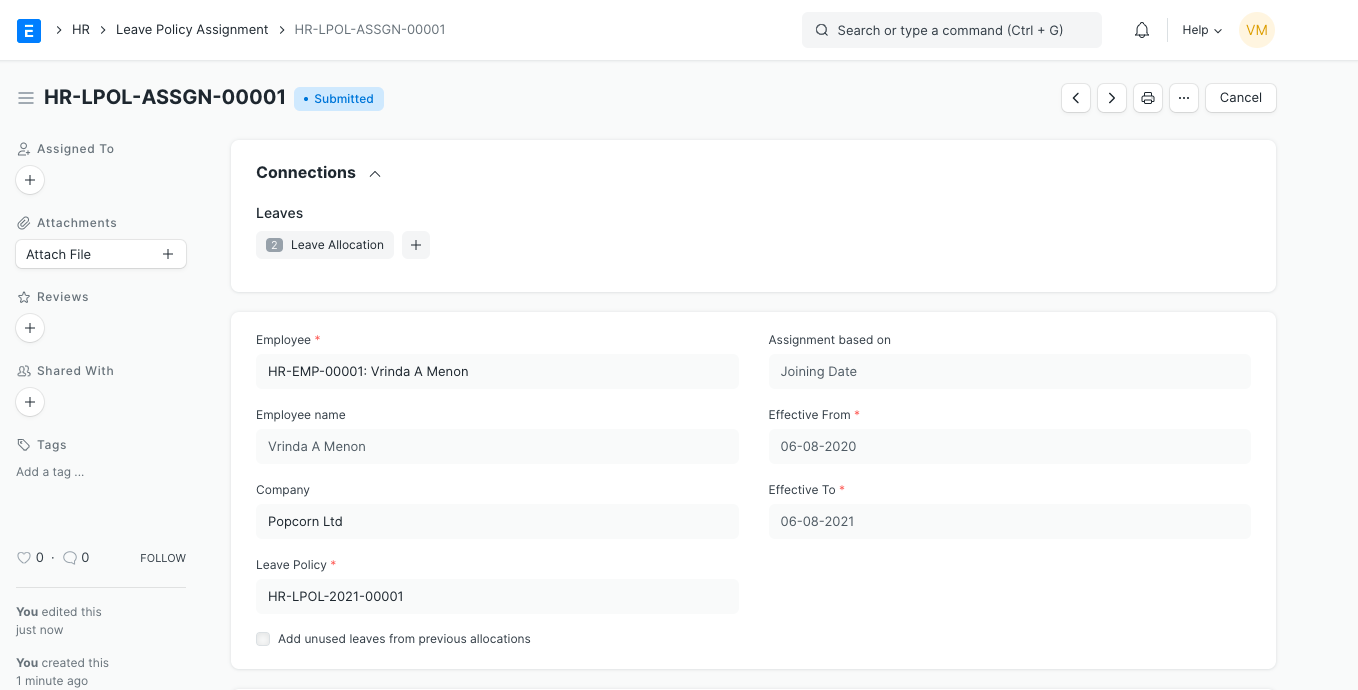
Submitting the Leave Policy Assignment automatically creates the corresponding Leave Allocation records.
3. Configure Salary Structure for Leave Encashment
Before creating a Leave Encashment record, ensure that a Salary Structure is assigned to the employee.
Within the Salary Structure, specify the value for:
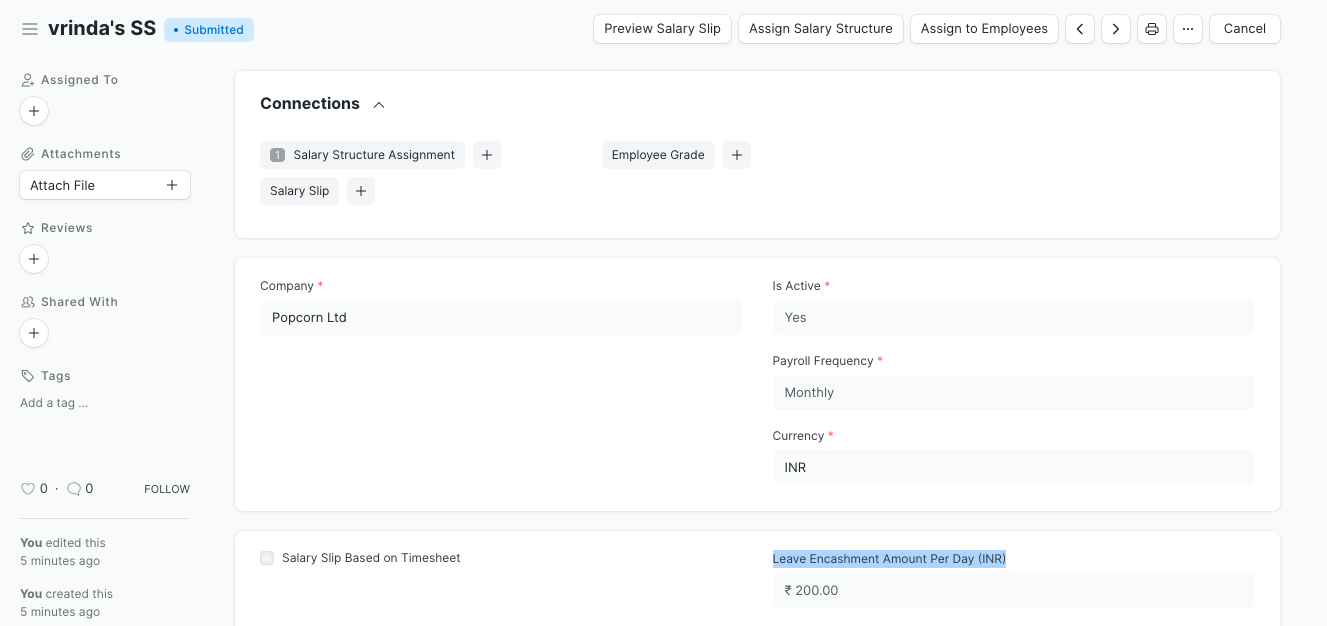
Leave Encashment Amount Per Day
This amount determines how much the employee will receive for each encashed leave day.
IMPORTANT
Leave Encashment cannot be calculated unless the employee has an active Salary Structure with a Leave Encashment Amount Per Day configured.
4. Assign the Salary Structure to the Employee
Assign the configured Salary Structure to the same employee who will receive the leave encashment.
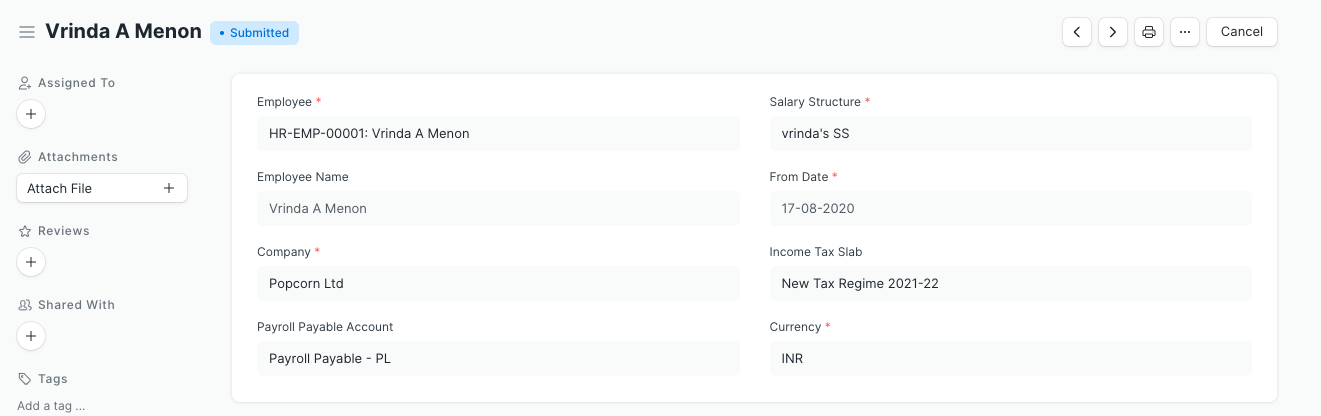
This ensures that the system can calculate the encashment amount correctly.
5. Create a Leave Encashment Record
Now create a new Leave Encashment entry.
While creating the record:
- Select the employee.
- Select the encashable Leave Type.
- Specify the encashment date.
- Ensure the encashment date falls within the Leave Allocation period.
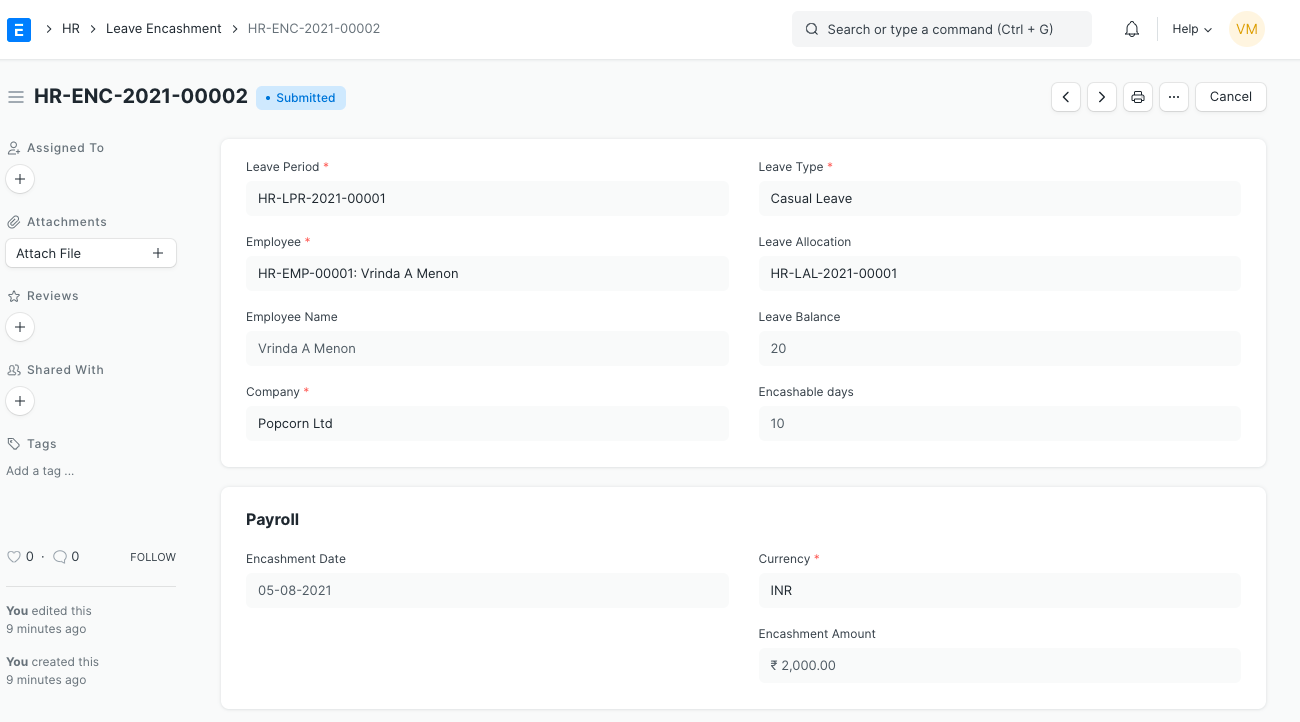
The Leave Encashment date must fall between the From Date and To Date defined in the Leave Allocation.
When the record is saved, the system automatically calculates and populates the:
Encashment Amount
based on the available leave balance and the Leave Encashment Amount Per Day.
6. Automatic Creation of Additional Salary
When the Leave Encashment document is submitted:
An Additional Salary record is automatically generated by the system.
This Additional Salary entry carries the encashment amount and becomes available for payroll processing.
7. Leave Encashment in Salary Slip
When a Salary Slip is generated for the employee, the Leave Encashment amount is automatically included under Earnings along with other salary components.
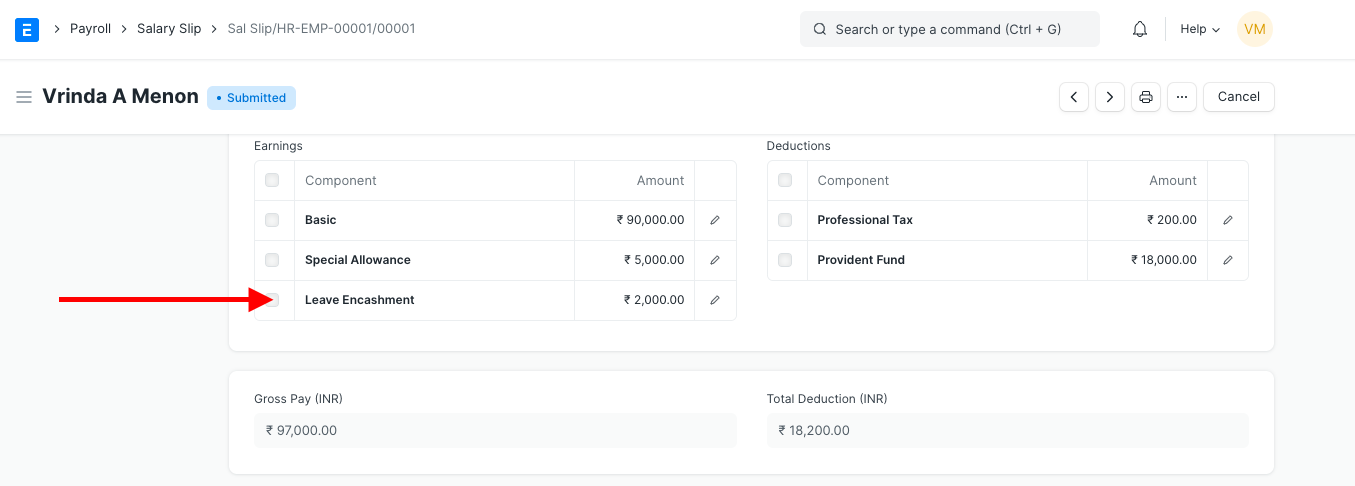
The encashment amount becomes part of the employee’s total payable earnings for that payroll period.
Preview Before Submission
Before submitting the Salary Slip, you can use the:
Preview Salary Slip
button to verify that the leave encashment amount has been included correctly.
Previewing the Salary Slip helps confirm that the encashed leave amount will be processed correctly before payroll is finalized.
NOTE
The Leave Encashment process relies on valid Leave Allocations, an encashable Leave Type, and an assigned Salary Structure. Missing any of these configurations can prevent the encashment amount from being generated.
TIP
Review employee leave balances before processing leave encashment to ensure the correct number of unused leaves are available. This helps avoid payroll adjustments later in the cycle.
Related Topics
- Leave Encashment
- Leave Type
- Leave Policy
- Leave Policy Assignment
- Leave Allocation
- Salary Structure
- Additional Salary
- Salary Slip
SUMMARY
Leave Encashment in Frappe HR enables employees to convert unused leave balances into additional earnings. By enabling Allow Encashment on a Leave Type, assigning it through a Leave Policy, configuring a Salary Structure with a Leave Encashment Amount Per Day, and creating a Leave Encashment record, organizations can automatically generate Additional Salary entries and include the encashment amount in employee Salary Slips.

