
How to Manage Compensatory Off Requests in Frappe HR
Compensatory Off allows employees to earn additional leave when they work on an official holiday. In Frappe HR, employees can request a compensatory leave against holidays on which they were marked present, and the approved leave is added to their leave balance through the leave allocation process.
This feature helps organizations fairly compensate employees who work during scheduled holidays.
Use Case
An employee works on a holiday and wants to claim a compensatory off day that can be used later as leave.
To enable this process, employee records, attendance, leave policies, and leave types must be configured correctly.
1. Create and Configure the Employee
Begin by creating an Employee record with all the required details.
While configuring the employee:
- Assign a Holiday List.
- Assign a Leave Policy.
- Ensure the employee is eligible for the leave type that supports compensatory off.
The Holiday List is essential because compensatory leave can only be claimed for holidays defined in the employee’s assigned Holiday List.
2. Mark Attendance on the Holiday
The employee must have attendance marked as Present on the holiday for which compensatory leave is being requested.
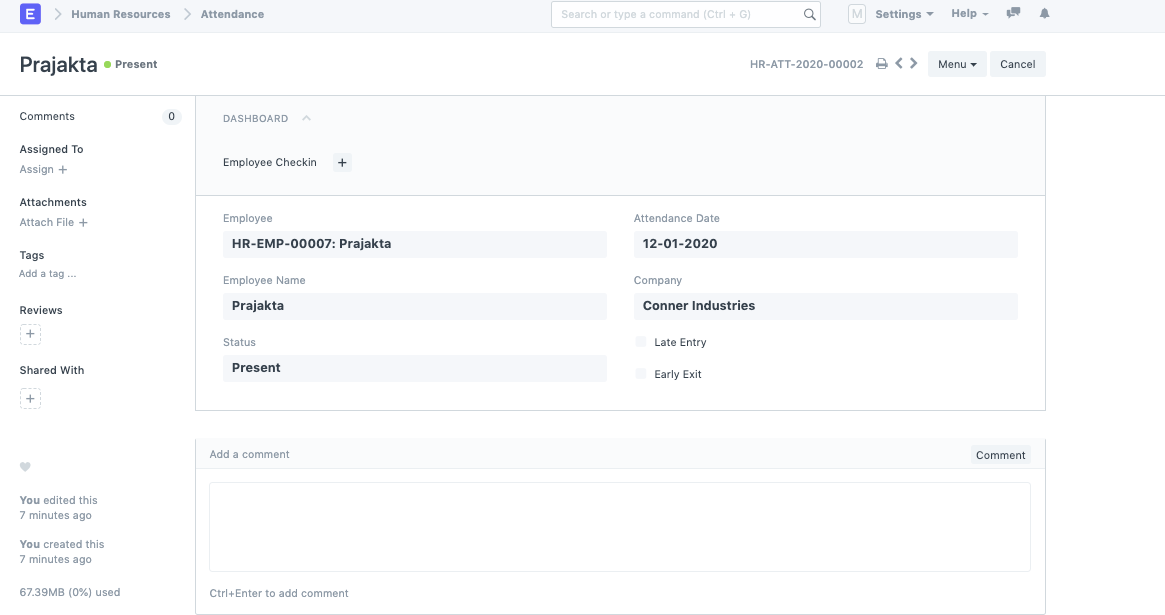
Attendance marked as Present on the holiday is mandatory for creating a Compensatory Leave Request.
IMPORTANT
The attendance date must correspond to a holiday defined in the employee’s assigned Holiday List. Attendance on a regular working day cannot be used for compensatory leave eligibility.
3. Create a Leave Allocation
Create or verify an active Leave Allocation for the employee.
The Leave Allocation ensures that approved compensatory leave can be credited to the employee’s leave balance.
4. Configure Leave Types for Compensatory Off
Open the Leave Type that will be used for compensatory leave and enable the option:
Allow Compensatory Leave
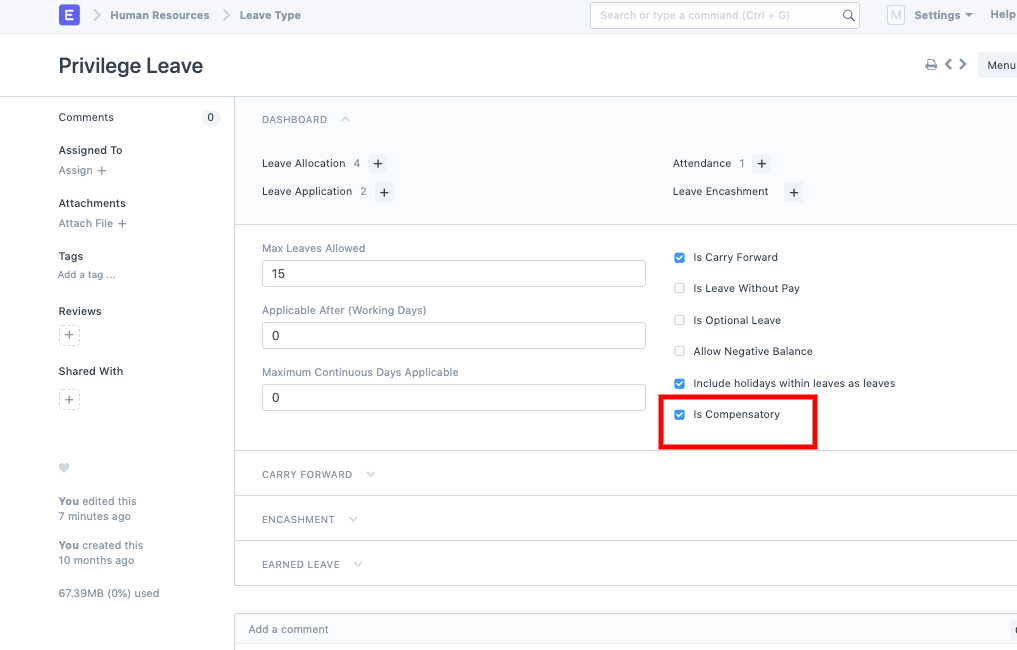
Only Leave Types with “Allow Compensatory Leave” enabled can be used for Compensatory Leave Requests.
5. Create a Compensatory Leave Request
Once attendance and leave configurations are complete:
- Create a new Compensatory Leave Request.
- Select the employee.
- Select the holiday date on which the employee worked.
- Submit the request for approval.
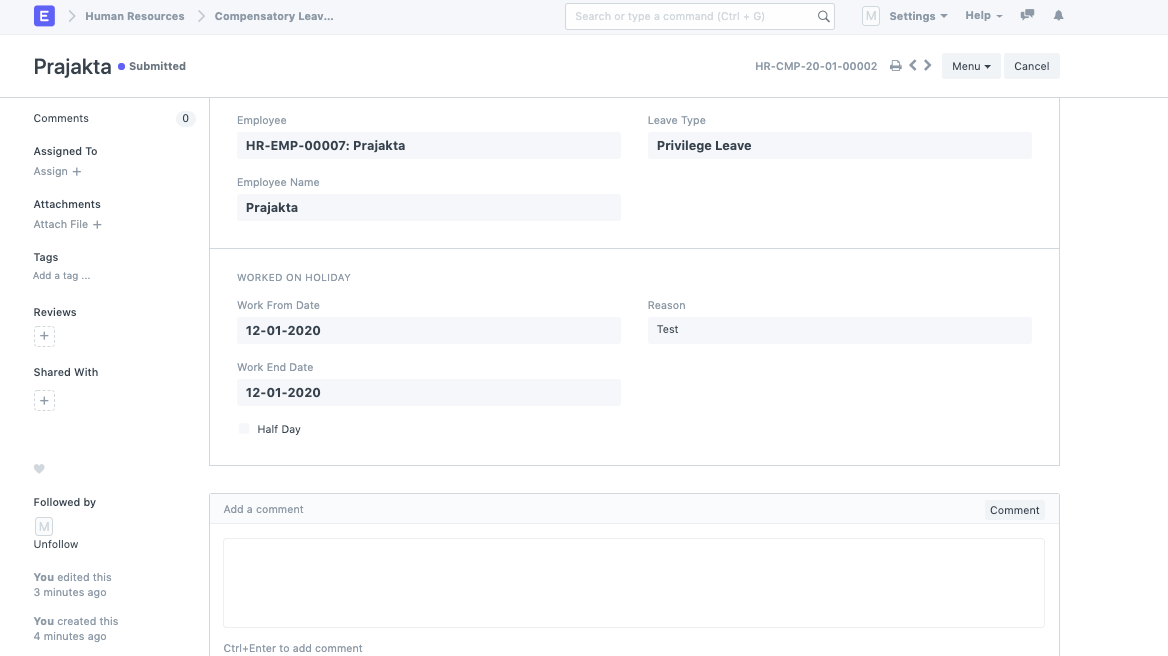
The system validates the attendance record and determines eligibility based on the holiday and leave configuration.
6. Verify Leave Allocation
After the Compensatory Leave Request is approved and processed, review the employee’s Leave Allocation.
The earned compensatory leave will be reflected in the allocated leave balance.
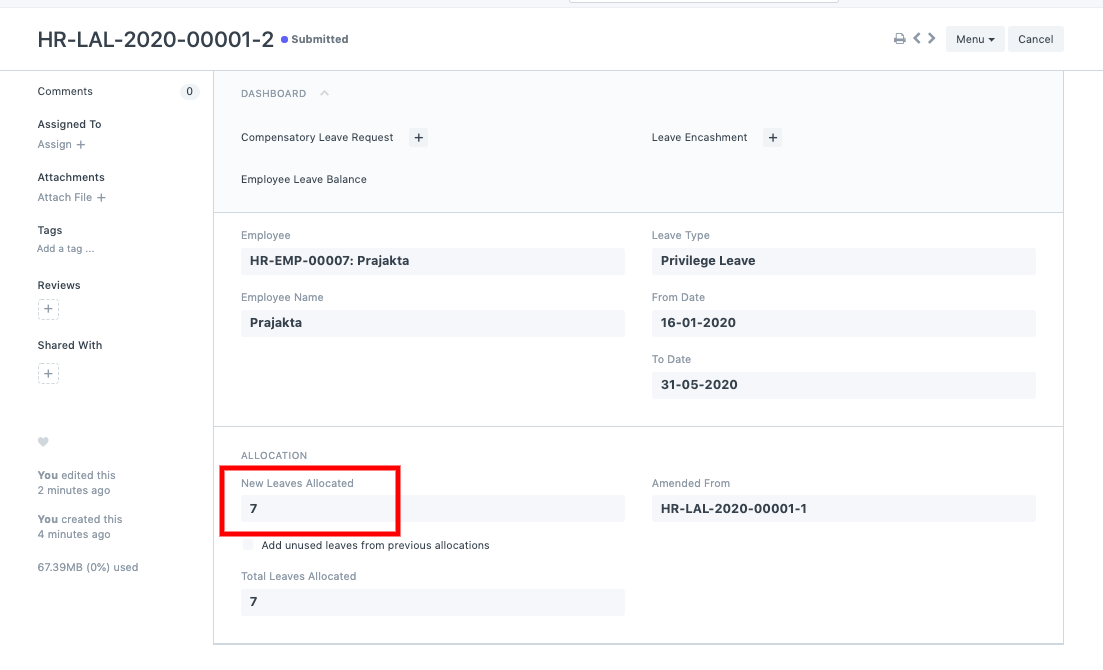
Approved compensatory leave requests automatically update the employee’s leave allocation balance.
How Compensatory Off Works
The overall process follows this sequence:
- Employee works on a holiday.
- Attendance is marked as Present.
- Holiday is validated against the assigned Holiday List.
- A Compensatory Leave Request is submitted.
- The request is approved.
- The employee’s leave allocation is updated with the compensatory leave balance.
- The employee can later utilize the earned leave through a Leave Application.
NOTE
If attendance is not marked as Present on the holiday, the employee will not be eligible to create a Compensatory Leave Request for that date. Always verify attendance records before processing compensatory leave claims.
TIP
Organizations that frequently require employees to work on public holidays should create dedicated leave types for compensatory leave and clearly define approval policies to ensure consistent leave management.
Related Topics
- Compensatory Leave Request
- Leave Type
- Leave Allocation
- Leave Policy
- Holiday List
- Attendance
- Leave Application
SUMMARY
Compensatory Off in Frappe HR allows employees to earn additional leave for working on official holidays. To use this feature, employees must have a Holiday List, Leave Policy, valid Leave Allocation, and attendance marked as Present on the holiday. After enabling compensatory leave on the relevant Leave Type and submitting a Compensatory Leave Request, the approved leave is automatically credited to the employee’s leave allocation balance.

