
How to Process Payroll in Frappe HR
Many users find payroll processing in Frappe HR challenging during the initial setup phase. However, once the required payroll configurations are completed, processing payroll in subsequent months becomes straightforward and efficient.
This guide walks through the complete payroll process, from setting up payroll periods to creating bank entries for salary payments.
1. Create a Payroll Period
The first step is to create a Payroll Period.
A Payroll Period defines the duration for which payroll will be processed. Depending on your organization’s financial year, the period may be configured as:
- January to December
- April to March
- Any other payroll cycle followed by the company
The Payroll Period serves as the foundation for all payroll calculations and tax computations.
2. Create Income Tax Slabs
If your organization follows the Indian taxation system, create the required Income Tax Slabs based on current government regulations.
You can:
- Define tax slabs and rates.
- Add additional tax calculations if required.
- Apply conditional tax rules.
- Enable tax exemptions where applicable.
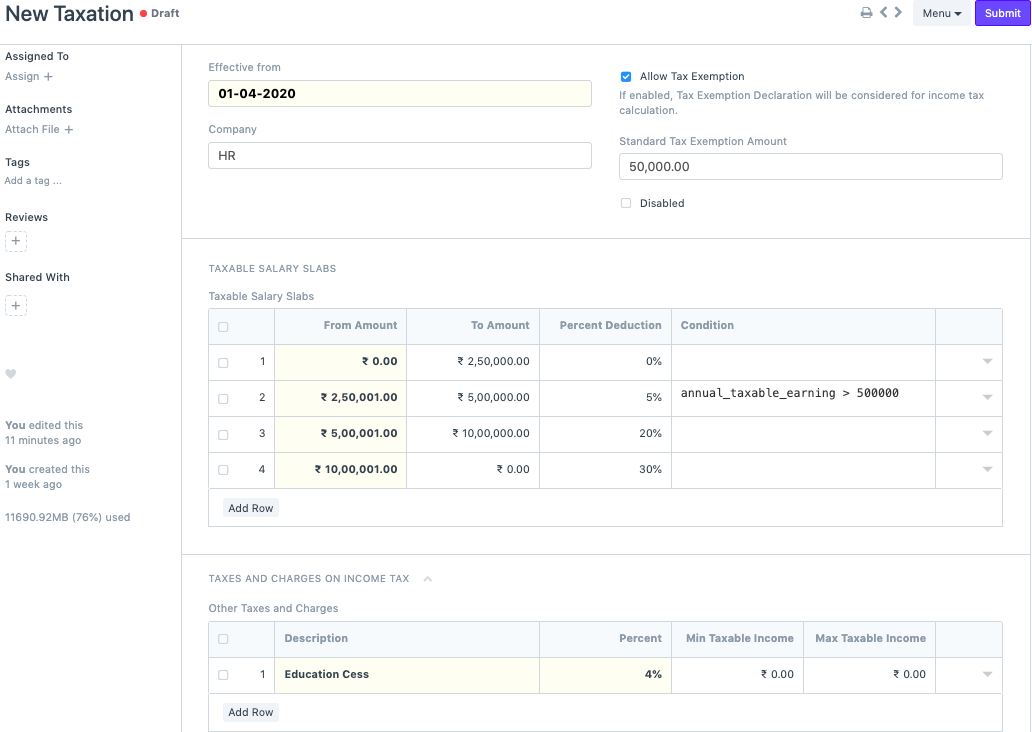
Income Tax calculations are automatically derived from the tax slab assigned to employees.
3. Submit Employee Tax Exemption Declarations
Employees can submit Tax Exemption Declarations to claim deductions and reduce their taxable income.
For Indian payroll, employees may declare investments under sections such as:
- Section 80C
- Section 80D
- Housing Loan Benefits
- Other eligible tax-saving categories
These declarations are considered while calculating employee income tax deductions.
4. Create Salary Components
Salary Components are the building blocks of payroll.
Create individual components and define whether they belong to:
- Earnings (Basic Salary, HRA, Allowances, etc.)
- Deductions (Income Tax, PF, Professional Tax, etc.)
For each component:
- Select the Company.
- Assign a Default Ledger Account.
- Define a fixed amount or a formula-based calculation.
- Configure applicable payroll settings.
For Income Tax salary components, enable “Variable Based on Taxable Salary” so that tax is calculated automatically.
5. Create a Salary Structure
After creating the required Salary Components, create a Salary Structure.
The Salary Structure defines:
- Earnings applicable to employees.
- Deductions applicable to employees.
- Payroll formulas.
- Payment mode.
- Timesheet-based salary settings (if applicable).
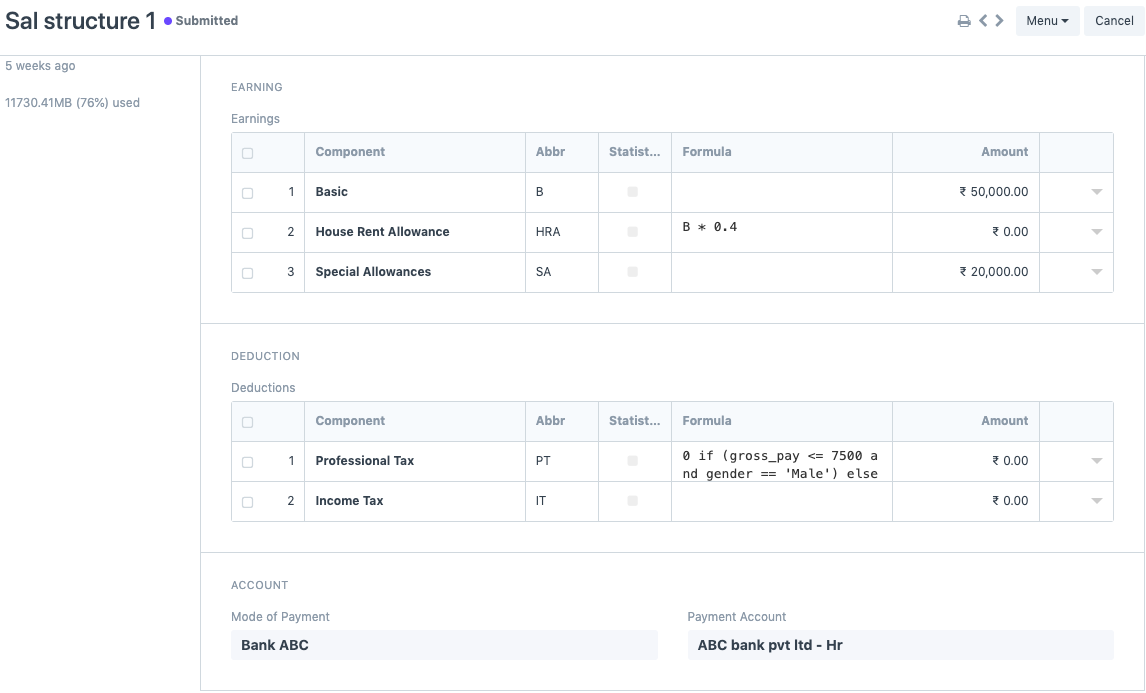
The Salary Structure acts as a payroll template that can be assigned to multiple employees.
6. Assign the Salary Structure
Once the Salary Structure is ready, assign it to employees using Salary Structure Assignment.
During assignment:
- Select the employee.
- Choose the applicable Income Tax Slab.
- Specify a base amount if formulas are being used.
- Submit the assignment.
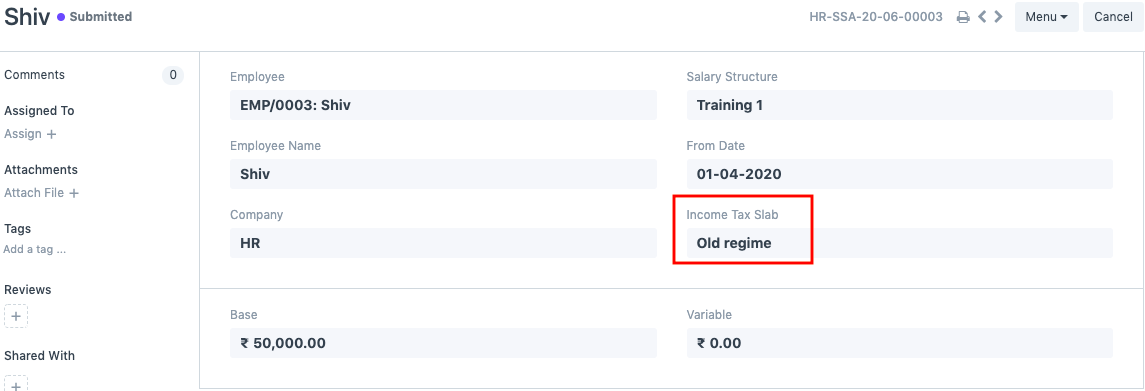
IMPORTANT
Salary Slips cannot be generated unless a Salary Structure has been assigned to the employee.
7. Create a Payroll Entry
Once all payroll configurations are completed, create a Payroll Entry.
While creating the Payroll Entry:
- Select the Payroll Date.
- Select the Payroll Frequency.
- Choose the Payment Account.
- Optionally filter employees by Department, Designation, or Branch.
- Click Get Employees.
The system will fetch all eligible employees and display them in the Employee Details section.
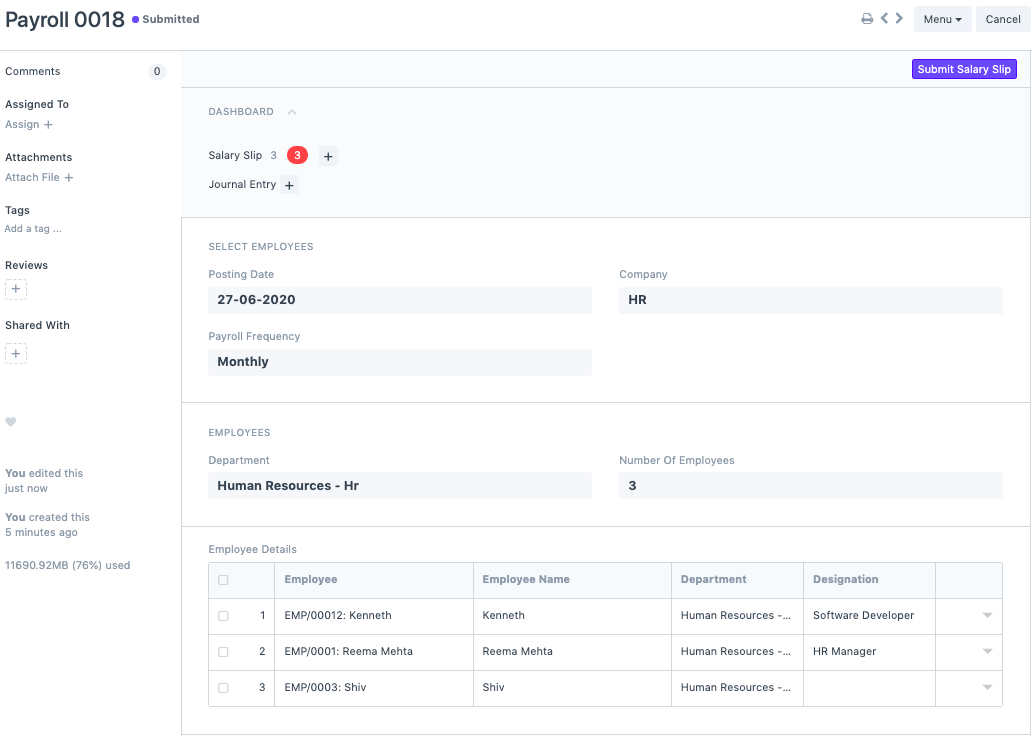
After reviewing the employee list:
- Click Create Salary Slips.
- Draft Salary Slips will be generated automatically.
- Review the generated Salary Slips.
- Submit the Salary Slips through the Payroll Entry.
8. Salary Accrual Entry
When Salary Slips are submitted, the system automatically creates an Accrual Journal Entry.
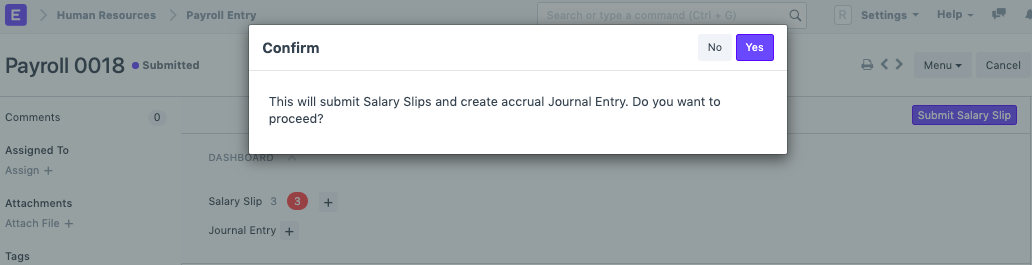
This journal entry records salary expenses in the accounting system.
Submitting Salary Slips books salary expenses but does not transfer funds to employee bank accounts.
9. Create the Bank Entry
The final payroll step is creating a Bank Entry.
The Bank Entry records the payment transaction for the salaries that were previously accrued.
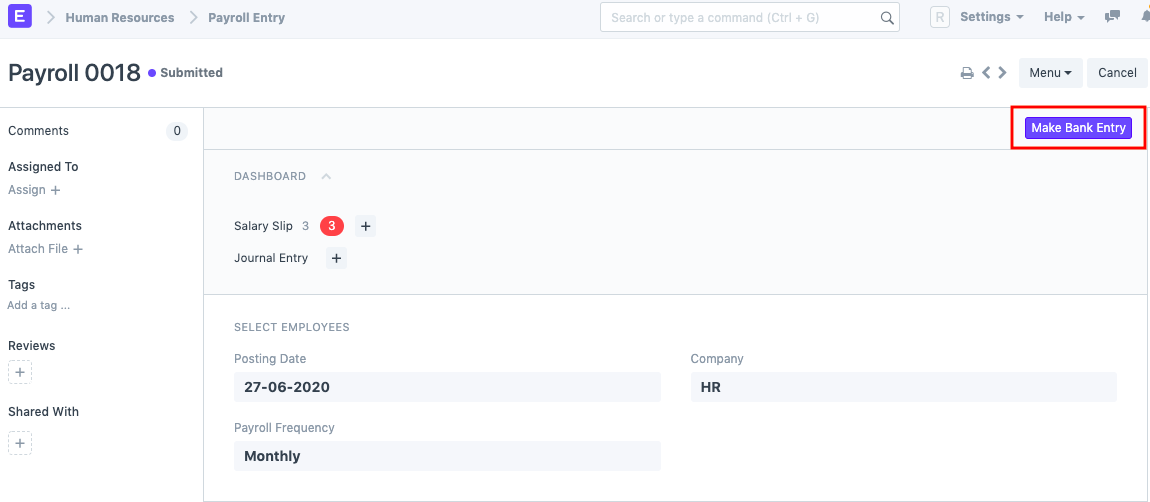
Once the Bank Entry is created, the payroll cycle is considered complete within the system.
NOTE
Creating a Bank Entry records the salary payment transaction in Frappe HR. However, the actual transfer of funds to employee bank accounts must still be completed through your banking system or payment process.
Payroll Workflow Overview
- Create Payroll Period.
- Create Income Tax Slabs.
- Collect Employee Tax Declarations.
- Create Salary Components.
- Create Salary Structure.
- Assign Salary Structure to Employees.
- Create Payroll Entry.
- Generate and Submit Salary Slips.
- Create Salary Accrual Entry.
- Create Bank Entry.
TIP
Spend extra time setting up payroll correctly during the first payroll cycle. Once salary components, tax slabs, and salary structures are configured properly, payroll processing for future months becomes significantly faster and requires minimal effort.
Related Topics
- Payroll Period
- Income Tax Slab
- Employee Tax Exemption Declaration
- Salary Component
- Salary Structure
- Salary Structure Assignment
- Payroll Entry
- Salary Slip
- Bank Entry
SUMMARY
Payroll processing in Frappe HR involves creating a Payroll Period, configuring tax slabs, defining salary components, creating salary structures, assigning them to employees, generating payroll entries, creating salary slips, recording accrual entries, and finally creating bank entries. While the initial setup requires careful configuration, the payroll process becomes highly streamlined and efficient once these foundational settings are in place.

